This feature is only available to Admins and Warehouse Managers. Couriers cannot modify their own hold status.
Pausing a Courier
1
Navigate to the Couriers page
Open the sidebar and click on Couriers.
2
Open the Courier Settings
Click on the courier you want to manage to open their Edit Courier drawer.
3
Toggle the Hold Status
Scroll down to the Operational Settings section. Find the Pause Packages (Hold) toggle and switch it on. The status label will change to a red Hold.
4
Save Changes
Click the Save Changes button at the bottom of the drawer.
Processing Packages During a Hold
Once a courier is paused, the warehouse can continue to process packages as normal using the Scan page. However, any packages assigned to that courier while they are on hold will exhibit the following behaviors:- No Immediate Sync: The package is not pushed to the package dispatch queue.
- Hidden from Courier: The package will not appear in the courier’s shipment view or be accessible via their API.
- Amber Indicators: On the Scan page and Packages list, the package will show an amber Pause icon instead of the usual green Sync checkmark.
Releasing Held Packages
When the hold is lifted and you are ready to allow the courier to see and sync their backlogged packages, you must release the holds.Releasing Individual Packages
- Go to the Packages page.
- Locate the held package (look for the amber Pause icon).
- Click the three horizontal dots (
...) on the right side of the row. - Select Release Hold. The package will immediately be queued for syncing and become visible to the courier.
Bulk Releasing All Held Packages
If a courier has many held packages, you can release all of them at once directly from their profile:- Go to the Couriers page.
- Click on the courier to open their details.
- Scroll down to the Operational Settings > Pause Packages (Hold) section.
- If there are held packages, you will see an amber notification displaying the count, along with a Release All Held button.
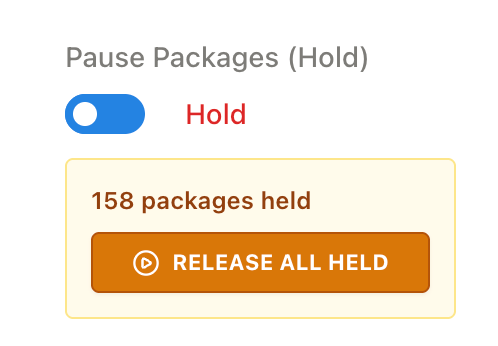
- Click the Release All Held button. It will turn red and prompt you to “Click to Confirm”.
- Click it a second time to confirm. All held packages for that courier will be released and queued for sync instantly.